Introduction to Networks
Week 2 — Network Topologies & Networking Devices
Reza Farashahi — NZSE
Network Topologies
Session 1 — Physical & Logical Layouts
Physical vs. Logical Topologies
- Physical topologies describe the placement of network devices and how they are physically connected.
- Logical topologies describe how data flows throughout a network.
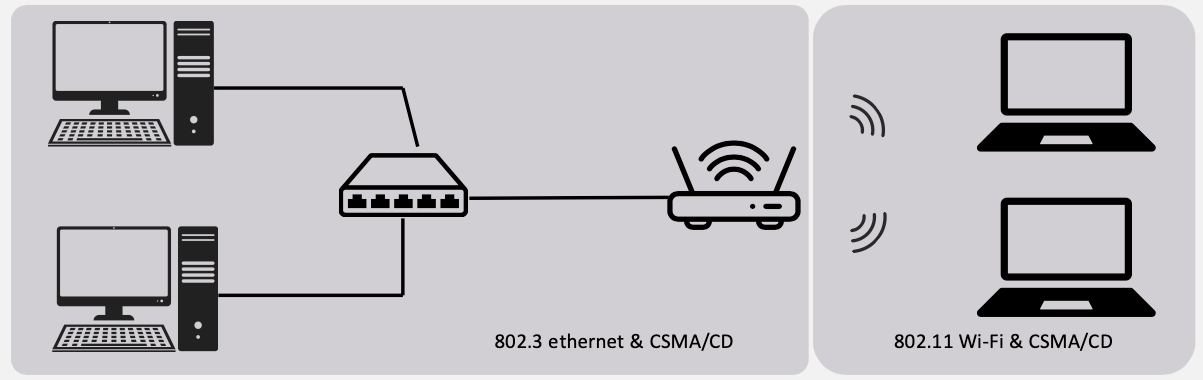
802.3 Ethernet — CSMA/CD
- Carrier Sense Multiple Access / Collision Detection
- Used in wired networks
- Before sending, a device listens to check if the cable is free
- If two devices send at the same time → collision is detected → both stop, wait a random time, and retry
- Think of it like a hallway: you look before you walk, and if you bump into someone, you both stop and try again
802.11 Wi-Fi — CSMA/CA
- Carrier Sense Multiple Access / Collision Avoidance
- Used in wireless networks
- Collisions are harder to detect over radio, so devices try to avoid them instead
- A device listens first, then sends a short "request to send" signal before transmitting data
- Think of it like raising your hand before speaking in class — you wait for permission to avoid talking over someone
Wired Network Topologies
There are four main wired network topologies:
- Bus — All devices on a single cable
- Ring — Devices connected in a circular loop
- Star — All devices connected to a central device
- Mesh — Every device connected to every other device
Each topology has its own advantages, disadvantages, and use cases. Let's explore each one.
Bus Topology
- All devices are connected to a single coaxial network cable.
- Devices are connected via a vampire tap or T-Connector.
- Terminators are required at both ends of the cable to prevent signal bounce.
- Only one device can be active on the network at a time — data signals travel in both directions and are received by all devices.
- A single break in the cable can take down the entire network.
- Considered antiquated technology — rarely used in modern networks.

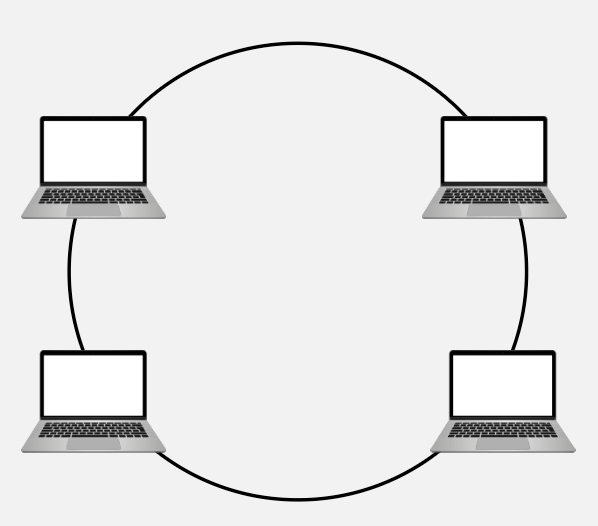
Ring Topology
- All devices are connected in a circular fashion.
- Each computer is connected to two other computers.
- Data travels from node-to-node, either unidirectional or bidirectional.
- Each device (node) in the ring regenerates the signal, acting as a repeater.
- Failure of a single node can take down the entire network.
- FDDI (Fiber Distributed Data Interface) uses two counter-rotating ring topologies for redundancy.
Star Topology
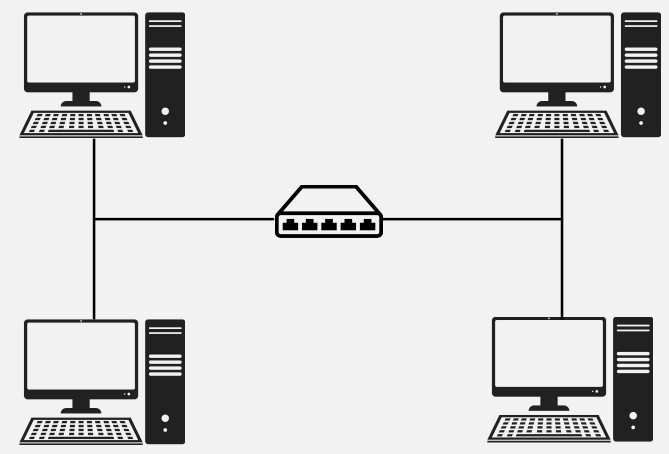
- All devices are connected to a central connecting device, which is usually a switch.
- Devices send data to the switch, which forwards it to the appropriate destination device.
- The most popular topology in today's networks — used in most large and small networks.
- Central device is a single point of failure — if the switch goes down, the entire network goes down.
Example: Your home or office network likely uses a star topology — all devices connect to a central router/switch.
Mesh Topology
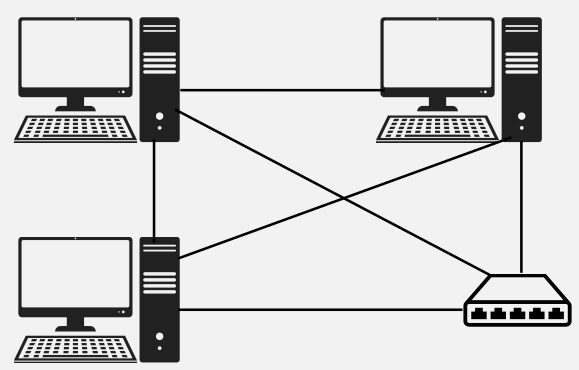
- Each device is connected to every other device by separate cabling.
- Highly redundant and fault-tolerant — if one link fails, data can take another path.
- Expensive to install due to the large amount of cabling required.
- Commonly used in Enterprise Networks and WANs.
Two Types:
- Partial Mesh — Some devices are connected to all others, but not every device has a direct connection to every other device.
- Full Mesh — Every device is directly connected to every other device on the network.
Wired Topology Comparison
Bus & Ring
- Bus: Simple & cheap, but a single cable failure breaks everything. Legacy technology.
- Ring: Ordered data flow with built-in signal regeneration, but a single node failure can bring the network down.
Star & Mesh
- Star: Easy to manage and troubleshoot. Most popular today. Central device is the single point of failure.
- Mesh: Maximum redundancy and reliability. Expensive but ideal for critical enterprise and WAN connections.
Quiz: Wired Topologies
Which wired topology connects all devices to a single central switch?
Wireless Network Topologies
Ad Hoc, Infrastructure & Mesh
Wireless Network Topologies
Wireless networks utilise radio frequencies (RF) to communicate instead of physical cables.
There are three main wireless topologies:
- Ad Hoc — Direct device-to-device communication
- Infrastructure — Devices connect through a central access point
- Mesh — Multiple access points create a robust network
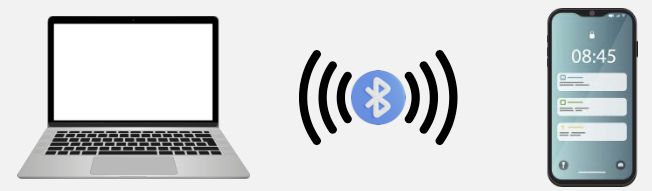
Ad Hoc Wireless Network
- A peer-to-peer (P2P) wireless network where no wireless access point (WAP) infrastructure exists.
- Devices communicate directly with one another.
- Personal area networks (PANs) are a common example of ad hoc wireless networks.
Real-World Examples:
- Apple AirDrop between iPhones
- Bluetooth file sharing between devices
- Wi-Fi Direct for printing
Infrastructure Wireless Network
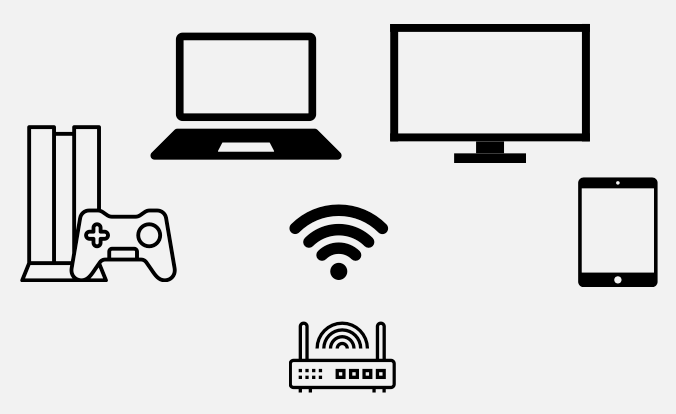
- A wireless network that uses a wireless access point (WAP) as its central connecting device.
- Infrastructure wireless networks (WLANs) are commonly used in homes and small offices.
- All wireless devices connect to the WAP, which then bridges traffic to the wired network.
Example: Your home Wi-Fi network — your laptop, phone, and smart TV all connect to the Wi-Fi router (which contains a WAP).
Wireless Mesh Network
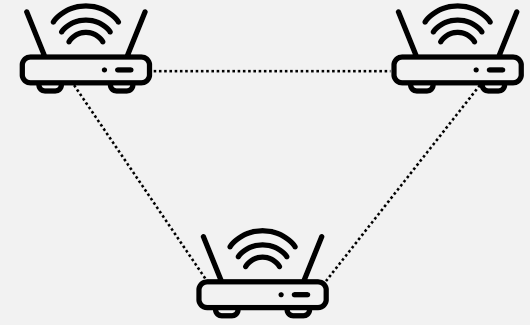
- Just like a wired mesh, wireless mesh networks utilise several wireless access points (nodes) to create a robust network that is:
- Scalable — easily add more nodes to extend coverage
- Self-Healing — if one node fails, traffic reroutes automatically
- Reliable — built-in redundancy across multiple paths
Common in larger homes and businesses.
Wireless Topologies in Everyday Life
You probably use all three wireless topologies without even realising it:
Ad Hoc
- AirDrop between iPhones
- Bluetooth headphones pairing
- Wi-Fi Direct to a printer
Infrastructure & Mesh
- Your home Wi-Fi router = Infrastructure
- Google Nest Wifi or TP-Link Deco = Mesh
- University campus Wi-Fi with many APs = Mesh
Quiz: Wireless Topologies
Which wireless topology uses multiple access points to create a self-healing, scalable network?
Networking Devices
Session 2 — Hardware That Makes Networks Work
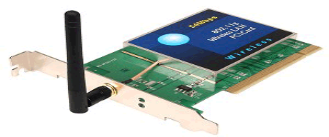
Network Interface Card (NIC)
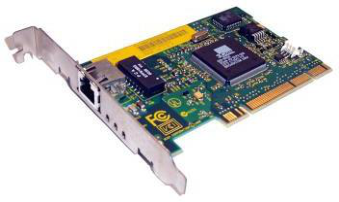
- The network adapter installed on your network device.
- Provides the physical and electrical, light or radio frequency connections to the network media.
- It can either be an expansion card, USB device, or built directly into the motherboard.
Every device that connects to a network needs a NIC — it's the hardware that makes network communication possible.
Hubs
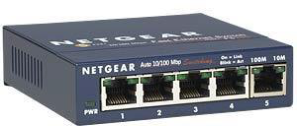
- Used to connect devices together within a network.
- Known as a "Multi-Port Repeater" — traffic goes in one port and is repeated (broadcasted) out every other port.
- OSI Layer 1 device — operates at the Physical layer.
- A "dumb" network device — has no intelligence about where data should go.
- Causes increased network collision errors.
- Much less efficient than a switch.
- Legacy equipment — no longer used in modern networks.
Switches
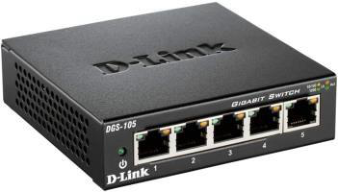
- Connects devices together just like a hub, but much smarter.
- Intelligent network device — operates at OSI Layer 2 (Data Link).
- Memorises the MAC address of each connected device via a MAC Address Table (also called a Content Addressable Memory / CAM Table).
- Pays attention to source and destination MAC addresses during communication.
- Uses ASIC (Application-Specific Integrated Circuitry), making them extremely fast.
- Analogy: Like an automated coin-sorting machine with physical slots (hardware), rather than a person manually inspecting and sorting each coin one by one (software).
- Breaks up collision domains — traffic goes in one port and out to only the destination port.
- Standard in today's network infrastructure.
Quiz: MAC Addresses
Question 1: Which of the following is a valid MAC address format?
Question 2: Can a MAC address be changed?
Hub vs. Switch — What's the Difference?
Hub (Layer 1)
- Broadcasts data to all ports
- No awareness of MAC addresses
- Creates collisions on the network
- "Dumb" device — no decision making
- Legacy / obsolete equipment
Switch (Layer 2)
- Sends data only to the destination port
- Learns and stores MAC addresses (CAM table)
- Breaks up collision domains
- "Intelligent" device — makes forwarding decisions
- Standard in modern networks
Quiz: Hubs vs. Switches
What makes a switch more efficient than a hub?
Wireless Access Point (WAP)
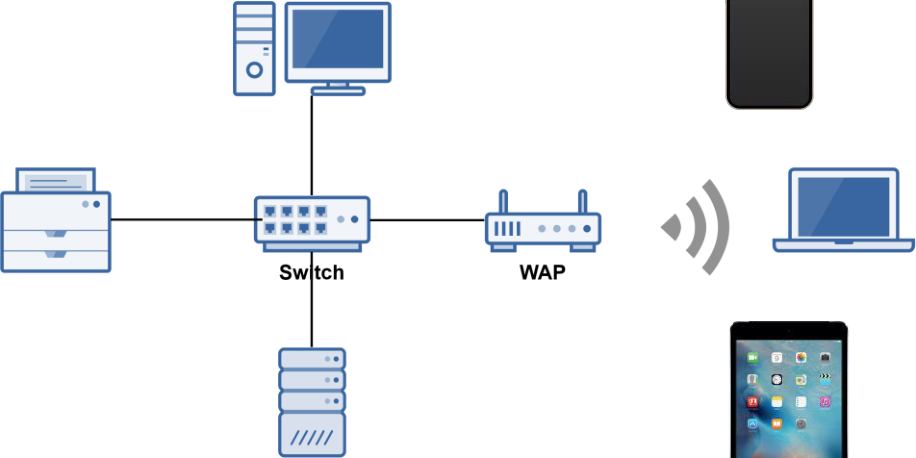
- A WAP is a bridge that extends the wired network to the wireless network.
- Just like a switch, it's a Data Link Layer 2 device.
Important: A WAP is NOT a Router
- A WAP operates at Layer 2 — it only bridges wireless devices onto the same network. It forwards frames using MAC addresses, just like a switch.
- A Router operates at Layer 3 — it connects different networks together and routes traffic between them using IP addresses.
- A WAP does not assign IP addresses, does not perform NAT, and does not route packets between networks.
Example: In an office, a WAP lets your laptop connect wirelessly to the same LAN that desktop computers are wired into. But to reach the internet (a different network), you still need a router.
People often confuse the two because home SOHO devices combine both a WAP and a router into one box.
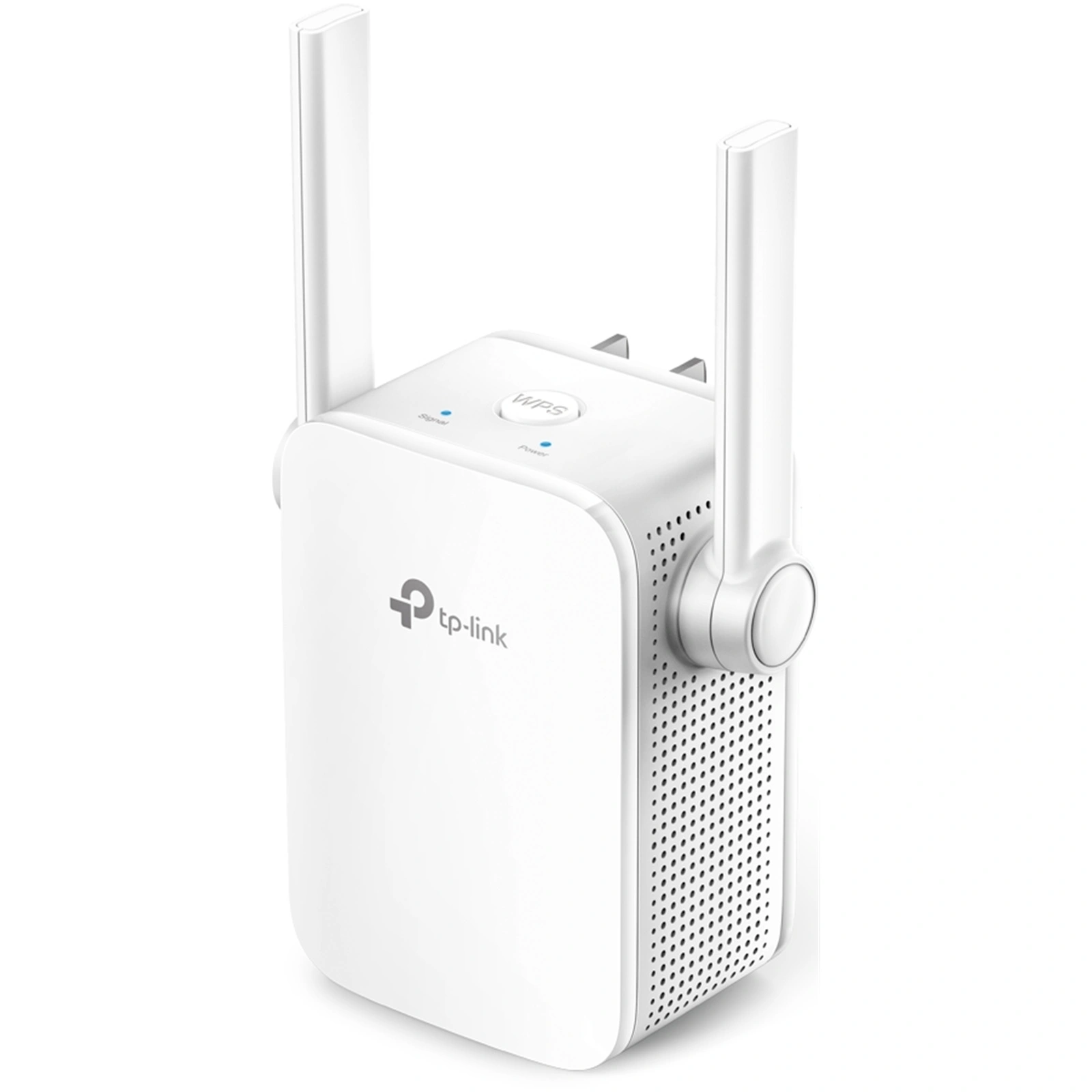
Wireless Range Extender
- Extends the range of a wireless network by acting as a wireless repeater.
- Rebroadcasts radio frequencies from the wireless network it is associated with.
Example: If your Wi-Fi signal doesn't reach the back of your house, a range extender placed halfway can pick up the signal and rebroadcast it to extend coverage.
Note: Range extenders typically halve the available bandwidth since they use the same channel to receive and retransmit.
Routers
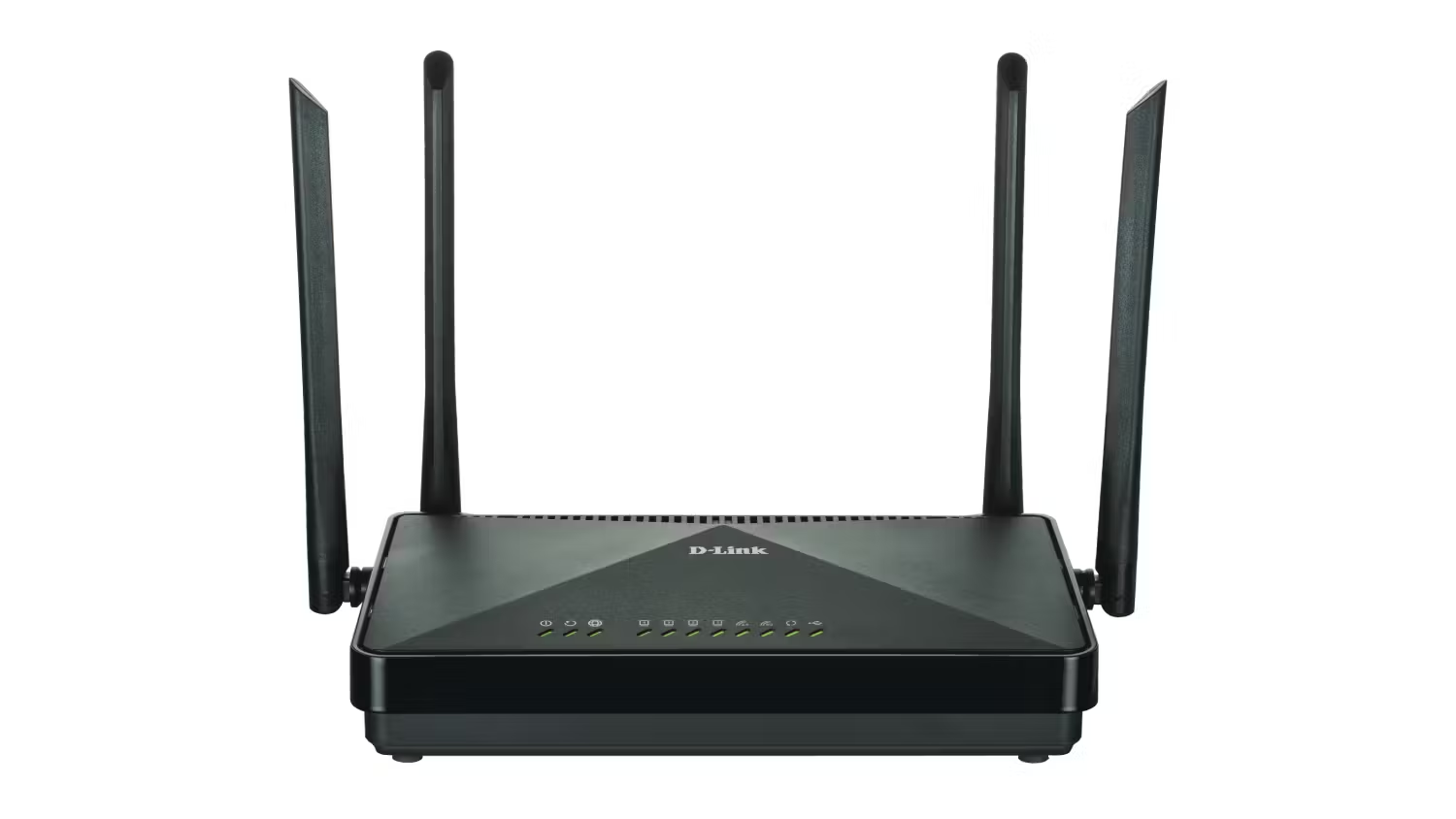
- Used to connect different networks together.
- Routes traffic between networks using IP addresses.
- Uses intelligent decisions (routing protocols) to find the best path to get a packet from one network to another.
- Break up broadcast domains — a broadcast is a message sent to every device on a network (e.g. "Who has this IP?"). Without a router, every broadcast reaches every device, wasting bandwidth. A router stops broadcasts from crossing into other networks, keeping each network quieter and more efficient.
- OSI Layer 3 device (Network layer).
Quick OSI Layer Reference:
- Layer 3 = Router
- Layer 2 = Switch
- Layer 1 = Hub
Networking Devices & OSI Layers
A quick way to remember which device operates at which layer:
Layer 1 — Physical
- Hub — multi-port repeater
- Media Converter — signal conversion
- Wireless Range Extender — signal repeater
Layer 2 & Layer 3
- Switch — Layer 2, uses MAC addresses
- WAP — Layer 2, bridges wired to wireless
- Router — Layer 3, uses IP addresses
Memory tip: "Hub = 1, Switch = 2, Router = 3" — the smarter the device, the higher the layer!
Quiz: Network Devices & OSI Layers
At which OSI layer does a router operate?
Modems (Modulators/Demodulators)
- Modems modulate one signal to another, such as digital to analog.
- For example, modulating digital pulses into an analog wave for telephone/coaxial cable transmission.
How it works:
- Modulation: Converts digital data (`1`s & `0`s) from your computer into an analog carrier wave.
- Demodulation: Converts incoming analog signals back into digital data your computer can use.
The word "modem" comes from Modulator + Demodulator.
Small Office Home Office (SOHO) Device
- An all-in-one wireless router with expanded capabilities.
A typical SOHO device combines many networking functions into a single box:
- Router — routes traffic between your LAN and the internet
- Wireless Access Point — provides Wi-Fi connectivity
- Firewall — basic network security
- Switch — wired Ethernet ports for devices
- DHCP Server — automatically assigns IP addresses
- NAT Device — translates between private and public IPs
Example: The Wi-Fi router in your home is most likely a SOHO device doing all of the above.
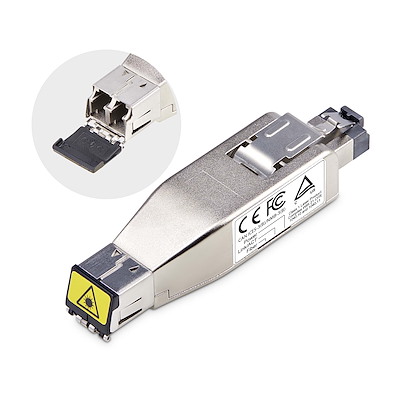
Media Converters
- As the name suggests, a media converter converts one media type to another.
- Layer 1 device — performs physical layer signal conversion only.
- Ethernet to fiber optic media converters are commonly used.
Example: An office building may use copper Ethernet cabling inside offices but fiber optic for the backbone between floors. A media converter bridges these two media types.
Network Security & Services
Firewalls, DHCP & VoIP
Firewalls
- Firewalls are the foundation of a defense-in-depth network security strategy.
- They protect your network from malicious activity on the Internet.
- Prevent unwanted network traffic from different networks from accessing your network.
- Firewalls do this by filtering data packets that go through them.
- They can be:
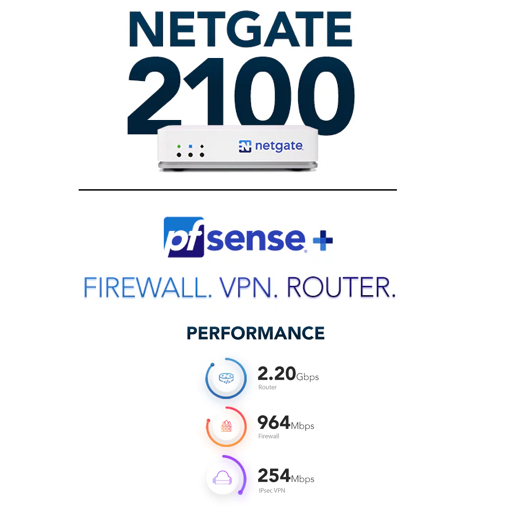
- Network-based (hardware) — a standalone network device
- Host-based (software) — software running on a computer system (e.g., Windows Firewall)
Types of Firewalls
1st Generation — Packet Filtering
- Most basic type of firewall
- Uses simple filtering rules (IP addresses, port numbers, protocols)
- Fast but limited in what it can detect
2nd Generation — Circuit-Level
- Monitors valid/invalid TCP sessions
- Verifies that TCP handshakes are legitimate
- More intelligent than packet filtering
- Analogy: Like a nightclub bouncer checking your ID and watching how you entered.
3rd Generation — Application Layer / NGFW
- Next-Generation Firewalls (NGFW)
- Inspects actual application data (Layer 7)
- Much more advanced — detects malware & intrusions
- Analogy: Like an airport security checkpoint opening bags for inspection.
Quiz: Firewalls
Which generation of firewall monitors valid/invalid TCP sessions?
DHCP Server
- Dynamic Host Configuration Protocol (DHCP) Server.
- Automatically assigns IP addresses to hosts on the network.
- Makes administering a network much easier — no need to manually configure each device.
- An alternative is static IP addressing, where you manually assign an IP to each device.
Example: When you connect your phone to Wi-Fi, a DHCP server automatically gives it an IP address like 192.168.1.105 — you don't have to type it in yourself.
Try It Yourself — Find Your IP Address
- Windows: Open CMD and type
ipconfig - Mac/Linux: Open Terminal and type
ifconfigorip a - Look for IPv4 Address — that's the IP your DHCP server assigned to you.
Can You Get a New IP from the DHCP Server?
- Yes! You can release your current IP and request a new one:
- Windows:
ipconfig /releasethenipconfig /renew - Mac:
sudo ipconfig set en0 DHCP(or use System Settings → Network) - Linux:
sudo dhclient -rthensudo dhclient - This is useful when troubleshooting network issues or when moving between networks.
Voice over IP (VoIP) Endpoints
- Most modern phone systems run over IP networks via dedicated protocols, such as the Session Initiation Protocol (SIP).
- Used in both home and office environments.
- VoIP endpoint devices can be:
- Hardware — dedicated VoIP phones (e.g., Cisco IP phones)
- Software — applications like Cisco Jabber, Microsoft Teams, or Zoom
Example: When you make a call on Microsoft Teams or Zoom, you're using VoIP — your voice is converted to data packets and sent over the internet.
Quiz: Network Services
What does a DHCP server automatically assign to hosts?
Week 2 Summary
Network Topologies
- Physical vs. Logical topologies
- Wired: Bus, Ring, Star, Mesh
- Wireless: Ad Hoc, Infrastructure, Mesh
- Star topology is the most common today
Networking Devices
- NIC — connects devices to the network
- Hub (L1) → Switch (L2) → Router (L3)
- WAP — bridges wired & wireless
- Firewall — network security foundation
- DHCP — automatic IP addressing
- SOHO — all-in-one home device